
To change the display format of your Product Options when viewing a product
Setting Display Formats Globally (Website-Wide)
To set a default display format for all products:
- Allez à E-commerce > Product View Options > Display Format.
- Choose the display style you want to use across the site.
These global settings apply to all products unless a specific product overrides them.
Setting Display Formats Per Product
You can control how options display on an individual product:
- Edit the product.
- Open the OPTIONS / SIZES page.
- Find the Product Options – Selection Layout section.
- Choose the display format you want from the dropdown list.
This per-product setting overrides the global default for that product only.
Simply choose the required option you would like to show from the relevant dropdown.
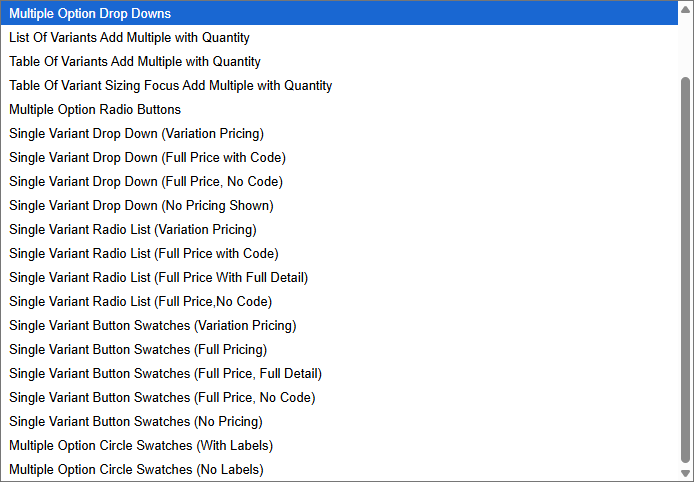
Simple Product Options
- Can use multiple display formats (e.g., button sets, radio buttons).
- Cannot use single display formats (e.g., single dropdown).
- If you assign a single display format to a Simple Option, the product will still show multiple dropdowns or radio buttons.
Product Variations
- Can use all display formats:
- Multiple display formats
- Single display formats
- This includes Single Dropdown (full price) and Single Dropdown (variation pricing).
Display Options examples - Simple Product Options

Default (standard multi-option layout)
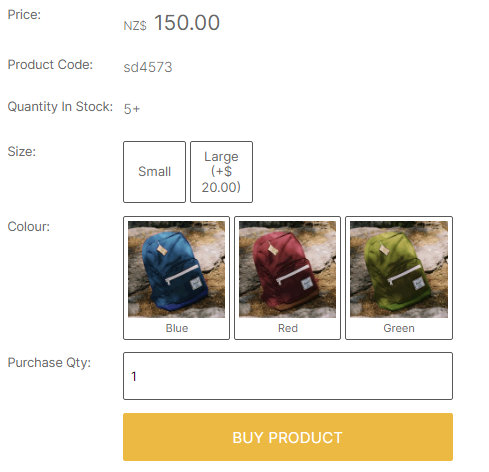
Multiple Button Sets (no pricing)
With optional image swatches.

Multiple Radio Buttons (no pricing)
Display Options examples - Product Variations
Product Variations support all formats, including single-selection layouts. Below shows some of the different formats.

Default Layout

Single Drop Down (full price)

Single Drop Down (Variation Pricing)
POS-only Display Options
The POS (Point of Sale) system can use its own product option layout, separate from the website.
To set a POS-specific display format:
- Log in to POS.
- Open the Settings menu (bottom left).
- Choose the display option format you want.
POS display settings override both global and per-product website settings for POS users.
More From This Section
FAQ Topics
Building your site
- Pages
- Content Editor Modes Explained
- - DRAG DROP Editor (Default)
- - CONTENTBOX Editor (Advanced)
- - WORD STYLE Editor (TinyMCE)
- - LIVE Editor (Click to Edit Mode)
- Styling Content
- Images / Backgrounds
- Banners and Sliders
- Uploading content
- Design Templates
- Forms
- More Q & A
- Menus
- Mobile Styling and Optimisation
Advanced Page Types
E-Commerce
- Shopping Basics
- Category Management
- Produits
- Product Options
- Layout and Formatting
- Options de paiement
- Processing Orders
- Advanced Ecommerce
- Product Pricing, Currencies
- Plugins
- Wholesale
- Bookings Management System
- Freight - Couriers
- Stock & Quantities
- Vouchers, Discounts, Loyalty Points
- Selling Photos / Prints
- Shopping Cart Add-on Page types
- Advanced APIs / Add ons
- Point de vente (PDV)
- Reports
- Orders / Invoices
Email & Membership
- Member Management
- Members Pages / Template Customisations
- From Addresses and Reply To Email Notifications
- Global Enquiry form options
- Standard Field Names
- Webmail
- Bulk Email
- CRM Features
- Email Campaigns
- Forums & Blogs
- Pop3/Imap Email Services
- Scams and Hoaxes
- Lead Magnets / Growing Your Customer Database
Promoting your site
Advanced
- Power User Options
- Form Spam Filtering
- Wordpress
- PHP Setup
- [TAGS]
- jQuery snippets
- Search External Links / Import external content
- HTML / CSS Snippets
- Embedding Web Fonts
- Loading additional Material Symbols styles
- FAQ Help Map
- Uploading local font files
- Advanced Template Customisation, CSS, etc
- Languages and Translations
- Importing Content from Another Platform
