
To understand how to promote items and the various promotional statuses you should read this help item first.
What are featured product stamps or stickers?
Featured product stamps or stickers appear as an overlay on products with a promoted status, if enabled in the theme or E-Commerce settings area.
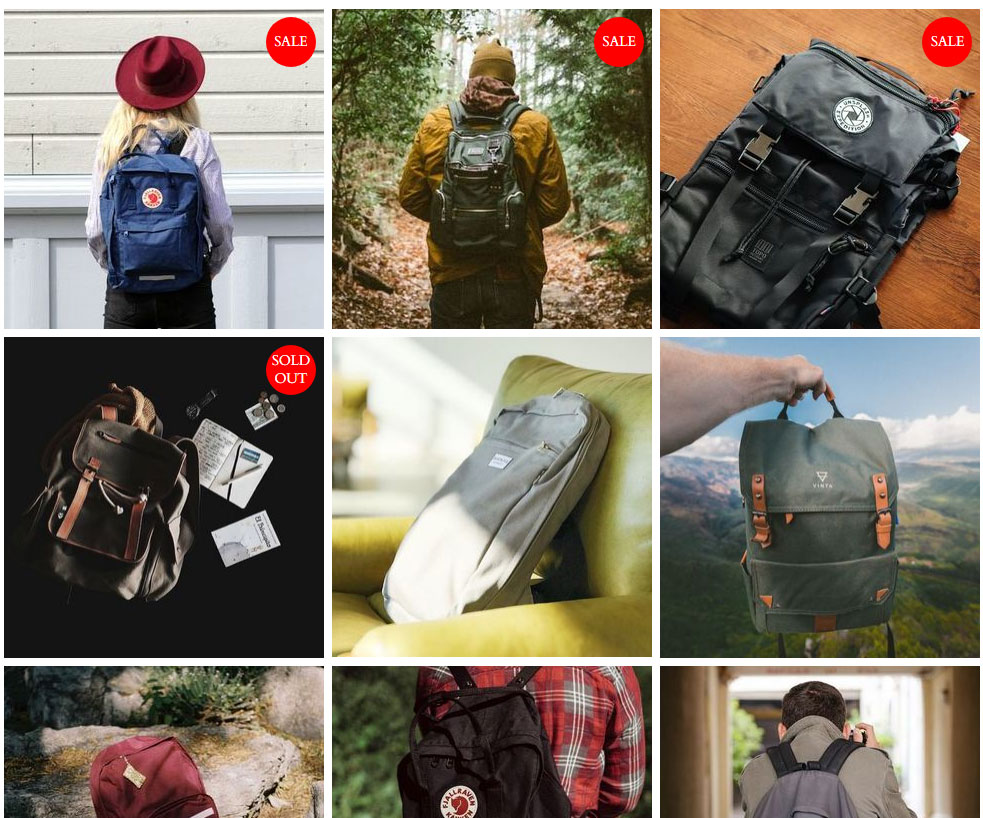
Sale and Out of Stock stamps from the template LIGHTROOM.
How to enable stamps
Stamps can be enabled via the E-COMMERCE > Display options area.
In the section Category List Options there is a checkbox Show Promotional Stamps
Any time a product is promoted, the product gets a special class added which will show the relevant stamp.
Note: only if stamps are enabled by the theme or set in the E-Commerce > Display options area.
- Setting a product to HOMEPAGE - BEST/SALE/NEW/FEATURED will add the product to the homepage and give the item a stamp in the products list
- Setting a product to TEMPLATE - BEST/SALE/NEW/FEATURED will not add the product to the template featured area, and give the item a stamp in the products list.
- If your template does not make use of TEMPLATE - BEST/SALE/NEW/FEATURED, its still a great way to add stamps to products if the template supports stamps.
What stamp types are available?
The four main promotional statuses are supported, along with two stock statuses.
Some templates may have different text on the stamp.
- SALE - Set via the template or homepage promotion status ON SALE.
- HOT - Set via the template or homepage promotion status BEST SELLER
- NEW - Set via the template or homepage promotion status NEW ITEM
- LOOK - Set via the template or homepage promotion status FEATURED
- SOLD OUT - Set when a products stock = 0
- BACK ORDER - Set when a products stock = 0 and items are set to back order.
Product discounts and promotion stamps
If products have the E-Commerce Display Option Show Promotional Stamps set, the product set to a promotion e.g. Best Seller AND a discount applied, the promotion will be overriden by % OFF amount stamp as this takes priority when using this option.
If you would like to have the promotional stamps show and not the % OFF amount, you will need to uncheck the Show Promotional Stamps box and use Custom CSS / Template styling (if any) to achieve the result.
More From This Section
FAQ Topics
Building your site
- Pages
- Content Editor Modes Explained
- - DRAG DROP Editor (Default)
- - CONTENTBOX Editor (Advanced)
- - WORD STYLE Editor (TinyMCE)
- - LIVE Editor (Click to Edit Mode)
- Styling Content
- Images / Backgrounds
- Banners and Sliders
- Uploading content
- Design Templates
- Forms
- More Q & A
- Menus
- Mobile Styling and Optimisation
Advanced Page Types
E-Commerce
- Shopping Basics
- Product Pricing, Currencies
- Category Management
- Ngā Hua
- Product Options
- Layout and Formatting
- Ngā Kōwhiringa Utu
- Freight - Couriers
- Processing Orders
- Orders / Invoices
- Advanced Ecommerce
- Plugins
- Wholesale
- Bookings Management System
- Stock & Quantities
- Vouchers, Discounts, Loyalty Points
- Selling Photos / Prints
- Shopping Cart Add-on Page types
- Advanced APIs / Add ons
- Te Wāhi Hoko (POS)
- Reports
Email & Membership
- Member Management
- Members Pages / Template Customisations
- From Addresses and Reply To Email Notifications
- Global Enquiry form options
- Standard Field Names
- Webmail
- Bulk Email
- CRM Features
- Email Campaigns
- Forums & Blogs
- Pop3/Imap Email Services
- Scams and Hoaxes
- Lead Magnets / Growing Your Customer Database
Promoting your site
Advanced
- Power User Options
- Form Spam Filtering
- Wordpress
- PHP Setup
- [TAGS]
- jQuery snippets
- Search External Links / Import external content
- HTML / CSS Snippets
- Embedding Web Fonts
- Loading additional Material Symbols styles
- FAQ Help Map
- Uploading local font files
- Advanced Template Customisation, CSS, etc
- Languages and Translations
- Importing Content from Another Platform
