
Afterpay and selling Gift Voucher products.
By default, the system won't allow a customer to checkout with afterpay, if the product title includes the word "voucher" or if the product is configured as a voucher.
Ngā Taipitopito a te Kaihoko
To use afterpay as a payment gateway you must ask for full customer details at the time of checkout. Short address options e.g. for pickup will not work with afterpay.
To Set Up
After registering and being approved with Afterpay, sign into the CMS.
Haere ki E-Commerce > Payment Options
Scroll down and click on Multi-Currency in the Afterpay box. Clicking anywhere else will take you to the Afterpay site.
Enter your Afterpay Merchant ID.
Enter your Afterpay Secret Key. It is best to copy and paste the key to avoid mistakes. Please ensure there is no extra space before or after the key.
In most cases, you can change Test Mode to Production Mode (live)
Press Check Configuration.
If you get a green check box and a message saying the Afterpay Configuration is good, you can click Save Changes.
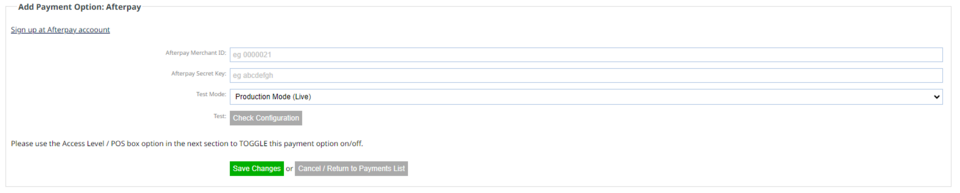
After you have saved this, you can go back into payment options and adjust if needed. e.g. a minimum buy amount before the customer can use Afterpay.
The price breakdown will show on the product page.
However, if you do set a minimum buy amount before the customer can use Afterpay, this does not show.
Additional Advanced options are available below this box.
Please be aware of the terms and conditions you signed with your payment gateway as to if you are allowed to pass any surcharges onto your customers.

More From This Section
FAQ Topics
Building your site
- Pages
- Content Editor Modes Explained
- - DRAG DROP Editor (Default)
- - CONTENTBOX Editor (Advanced)
- - WORD STYLE Editor (TinyMCE)
- - LIVE Editor (Click to Edit Mode)
- Styling Content
- Images / Backgrounds
- Banners and Sliders
- Uploading content
- Design Templates
- Forms
- More Q & A
- Menus
- Mobile Styling and Optimisation
Advanced Page Types
E-Commerce
- Shopping Basics
- Product Pricing, Currencies
- Category Management
- Ngā Hua
- Product Options
- Layout and Formatting
- Ngā Kōwhiringa Utu
- Freight - Couriers
- Processing Orders
- Orders / Invoices
- Advanced Ecommerce
- Plugins
- Wholesale
- Bookings Management System
- Stock & Quantities
- Vouchers, Discounts, Loyalty Points
- Selling Photos / Prints
- Shopping Cart Add-on Page types
- Advanced APIs / Add ons
- Te Wāhi Hoko (POS)
- Reports
Email & Membership
- Member Management
- Members Pages / Template Customisations
- From Addresses and Reply To Email Notifications
- Global Enquiry form options
- Standard Field Names
- Webmail
- Bulk Email
- CRM Features
- Email Campaigns
- Forums & Blogs
- Pop3/Imap Email Services
- Scams and Hoaxes
- Lead Magnets / Growing Your Customer Database
Promoting your site
Advanced
- Power User Options
- Form Spam Filtering
- Wordpress
- PHP Setup
- [TAGS]
- jQuery snippets
- Search External Links / Import external content
- HTML / CSS Snippets
- Embedding Web Fonts
- Loading additional Material Symbols styles
- FAQ Help Map
- Uploading local font files
- Advanced Template Customisation, CSS, etc
- Languages and Translations
- Importing Content from Another Platform
