
You can configure Product pricing entry format to be inclusive or exclusive of tax (GST/VAT/Sales tax). By default the product pricing is exclusive of tax.
To set tax based price entry in your shopping pages
- Click the E-COMMERCE button from the top menu to give you access to your Catalogue/Shopping cart.
- From the options available, find the Payments and Tax section and click the TAX RATES button.
- Tīpakohia "Price Entry Format" to "Tax excl price"/"Tax incl price" and click on Tiakina ngā Huringa to save the configuration setup.
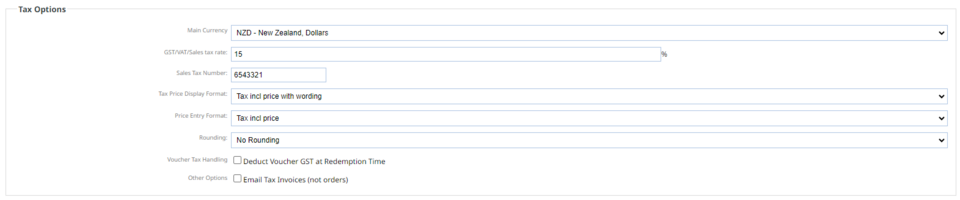
Tax Price Display Format: is what your customer sees on the website
Price Entry Format: is what you see in the CMS when you add your prices.
Depending on the price entry format choosen, the product label displays Excl or Incl in the configuration pages and the prices are shown accordingly. If no Excl or Incl label is displayed, the price is exclusive of tax.
The price display format in checkout and shopping pages depends on "Tax Price Display format" setup.
Tax exclusive price
When this option is chosen, the tax rate is not included on price entry and the product price is saved as it is. On check out GST is applied on the total order.The example below illustrates the same.
Product Name : Apple
Price Entry Format : Tax excl price
GST:15%
Entry Price (Excl): 2.00 Excl Price : 2.00 Checkout Price : 2.00 + (2.00*15/100)= 2.30
Tax inclusive price
When this option is choosen, the tax rate is included on price entry and the product price less GST is saved.On check out GST is applied on product level to match the inclusive price. The example below illustrates the same.
Product Name : Apple
Price Entry Format : Tax incl price
GST:15%
Entry Price (Incl): 2.00 Excl Price : 1.74 Checkout Price : 1.74 + (1.74*15/100)= 2.00
If the shopping page has multiple currencies, the inclusive price less GST is used for foreign currency checkout.
Price switching
Advanced users can use the "Bulk Pricing" option to adjust product pricing to keep the prices in sync with the new price entry format.
More From This Section
FAQ Topics
Building your site
- Pages
- Content Editor Modes Explained
- - DRAG DROP Editor (Default)
- - CONTENTBOX Editor (Advanced)
- - WORD STYLE Editor (TinyMCE)
- - LIVE Editor (Click to Edit Mode)
- Styling Content
- Images / Backgrounds
- Banners and Sliders
- Uploading content
- Design Templates
- Forms
- More Q & A
- Menus
- Mobile Styling and Optimisation
Advanced Page Types
E-Commerce
- Shopping Basics
- Product Pricing, Currencies
- Category Management
- Ngā Hua
- Product Options
- Layout and Formatting
- Ngā Kōwhiringa Utu
- Freight - Couriers
- Processing Orders
- Orders / Invoices
- Advanced Ecommerce
- Plugins
- Wholesale
- Bookings Management System
- Stock & Quantities
- Vouchers, Discounts, Loyalty Points
- Selling Photos / Prints
- Shopping Cart Add-on Page types
- Advanced APIs / Add ons
- Te Wāhi Hoko (POS)
- Reports
Email & Membership
- Member Management
- Members Pages / Template Customisations
- From Addresses and Reply To Email Notifications
- Global Enquiry form options
- Standard Field Names
- Webmail
- Bulk Email
- CRM Features
- Email Campaigns
- Forums & Blogs
- Pop3/Imap Email Services
- Scams and Hoaxes
- Lead Magnets / Growing Your Customer Database
Promoting your site
Advanced
- Power User Options
- Form Spam Filtering
- Wordpress
- PHP Setup
- [TAGS]
- jQuery snippets
- Search External Links / Import external content
- HTML / CSS Snippets
- Embedding Web Fonts
- Loading additional Material Symbols styles
- FAQ Help Map
- Uploading local font files
- Advanced Template Customisation, CSS, etc
- Languages and Translations
- Importing Content from Another Platform
