
Before adding products for the first time, ensure your tax and currency are set up correctly. See https://www.help.cms-tool.net/blog/462182
There are many places where you can add a product
First you need to ensure you have created the category you want the product to be in. (if applicable)
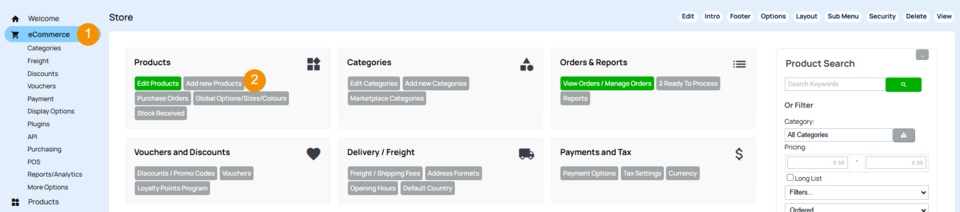
1. One simple way to add a new product is E-commerce
2. Add New Products.
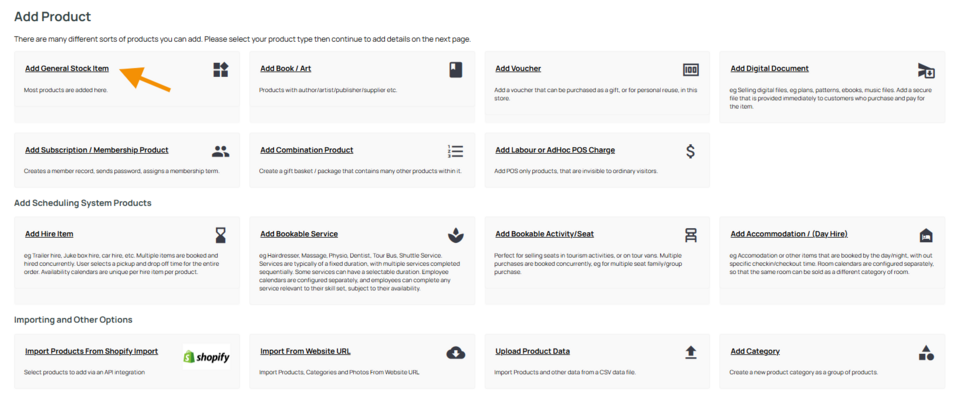
3. Add General Stock Item
4. On the next screen you can add base information about your products. More detail on these fields can be found below.
More complex information such as options, sizes, colours, features, specs, special pricing or any information you have missed can be added in the next screen once the base product has been created.

Kāwai Hua: If you were not in the correct category when you pressed "add product" you can change it here. You can add your product to multiple additonal categories if needed after this screen.
Title: Name of your product that appears to customer - Best if it is unique
Product Details: A short product description, a couple of lines is good here for a summary of the product. This is also used for Google Shopping feed.
Product Code: A code that is unique to the product
Price: Checkout Price - more pricing can be added later
UOM (unit of measure): Useful information to customer such as 200ml. Not a required field.
Stock
Quantity in Stock: Set to unlimited by default, you can change this if you not intending on having stock keeping variants.
Stock Location: Handy if you have a warehouse and want to put location in e.g. Isle 10 Bay 22
Availability Text: Useful if something is out of stock and expected soon such as "Coming in April"
Freight Weight (grams): Useful to be entered if using weight based freight options or live pricing.
Product Image
Arotautanga Pūkaha Rapu
Promotion/Visibility
Supplier Details
Useful in your tracking/reporting of your product, or for making purchase orders through the CMS, but not visible on your website.
Supplier Price: How much you bought it from your supplier for.
Supplier Code: Useful if you want to use Purchase Order ability in the CMS, or for your own records
Supplier Name: Useful if you want to use Purchase Order ability in the CMS, or for your own records
Manufacturer/Make: Useful for your own records.
Manufacturer Code: Useful for your own records.
5. After you have entered the initial fields that you wish to on this screen, press "Add Product"
More From This Section
FAQ Topics
Building your site
- Pages
- Content Editor Modes Explained
- - DRAG DROP Editor (Default)
- - CONTENTBOX Editor (Advanced)
- - WORD STYLE Editor (TinyMCE)
- - LIVE Editor (Click to Edit Mode)
- Styling Content
- Images / Backgrounds
- Banners and Sliders
- Uploading content
- Design Templates
- Forms
- More Q & A
- Menus
- Mobile Styling and Optimisation
Advanced Page Types
E-Commerce
- Shopping Basics
- Product Pricing, Currencies
- Category Management
- Ngā Hua
- Product Options
- Layout and Formatting
- Ngā Kōwhiringa Utu
- Freight - Couriers
- Processing Orders
- Orders / Invoices
- Advanced Ecommerce
- Plugins
- Wholesale
- Bookings Management System
- Stock & Quantities
- Vouchers, Discounts, Loyalty Points
- Selling Photos / Prints
- Shopping Cart Add-on Page types
- Advanced APIs / Add ons
- Te Wāhi Hoko (POS)
- Reports
Email & Membership
- Member Management
- Members Pages / Template Customisations
- From Addresses and Reply To Email Notifications
- Global Enquiry form options
- Standard Field Names
- Webmail
- Bulk Email
- CRM Features
- Email Campaigns
- Forums & Blogs
- Pop3/Imap Email Services
- Scams and Hoaxes
- Lead Magnets / Growing Your Customer Database
Promoting your site
Advanced
- Power User Options
- Form Spam Filtering
- Wordpress
- PHP Setup
- [TAGS]
- jQuery snippets
- Search External Links / Import external content
- HTML / CSS Snippets
- Embedding Web Fonts
- Loading additional Material Symbols styles
- FAQ Help Map
- Uploading local font files
- Advanced Template Customisation, CSS, etc
- Languages and Translations
- Importing Content from Another Platform
