
If you are not using an automatic payment gateway, (e.g. manual internet banking) you may need to mark your orders as paid manually.
You can do this individually which allows you to make adjustments if needed, or you can mark many orders as paid in bulk.
Marking Orders as Paid -Single Order
1. Go to Orders on the left hand menu OR E-Commerce > Orders. There is also another option of viewing orders from your sign in dashboard.
2. Next to the order you want to mark as paid, click the $ symbol.

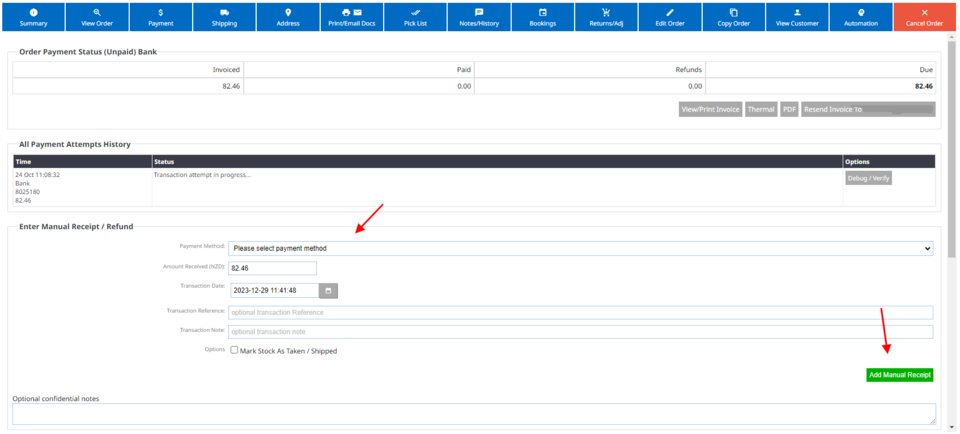
3. On the next screen, you can adjust the payment method, amount received, transaction date, transaction reference, a transaction note and mark stock as taken/shipped if needed.
4. You will see a green confirmation message, which will also ask if you wish to send a receipt to the customer.
You may need to refresh your screen to see the changes made.
Marking Orders as paid in bulk.
1. Go to Orders on the left hand menu OR E-Commerce > Orders. There is also another option of viewing orders from your sign in dashboard.
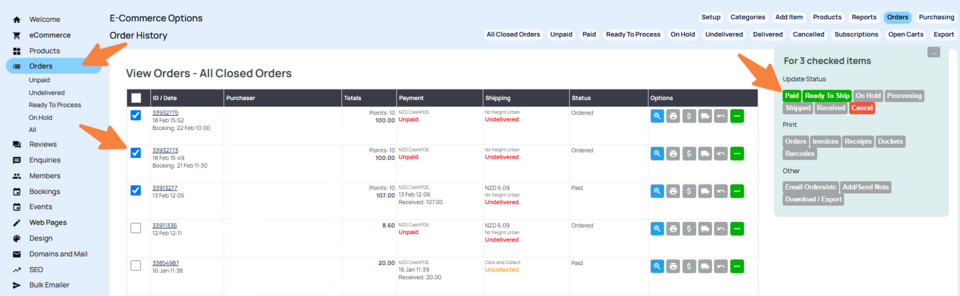
2. Select the orders you wish to change by clicking the check mark next to it.
3. You will notice as you do this, more options will show on the right hand side.
Use the "Paid" button to mark all checked orders as paid. Using this approach, you may need to refresh your screen to see the changes made.
NB This approach does not send receipts and may not trigger automatic actions related to this in the system.
More From This Section
FAQ Topics
Building your site
Advanced Page Types
E-Commerce
- Shopping Basics
- Product Pricing, Currencies
- Category Management
- Products
- Product Options
- Layout and Formatting
- Payment Options
- Freight - Couriers
- Processing Orders
- Orders / Invoices
- Advanced Ecommerce
- Plugins
- Wholesale
- Bookings Management System
- Stock & Quantities
- Vouchers, Discounts, Loyalty Points
- Selling Photos / Prints
- Shopping Cart Add-on Page types
- Advanced APIs / Add ons
- Point of Sale (POS)
- Reports
Email & Membership
Promoting your site
Advanced
- Power User Options
- Form Spam Filtering
- Wordpress
- PHP Setup
- [TAGS]
- jQuery snippets
- Search External Links / Import external content
- HTML / CSS Snippets
- Embedding Web Fonts
- Loading additional Material Symbols styles
- FAQ Help Map
- Uploading local font files
- Advanced Template Customisation, CSS, etc
- Languages and Translations
- Importing Content from Another Platform
