
Custom questions are a great way to collect additional information from customers that is not tracked as stock. These are ideal for product customisations such as:
- Personalised names or text
- Additional colour options or trims
- Uploading logos, images, or documents per product
- Special instructions per product
Custom questions allow you to extend your product options beyond standard sizes, colours, and styles that are stock-tracked.
Step 1: Accessing Custom Questions
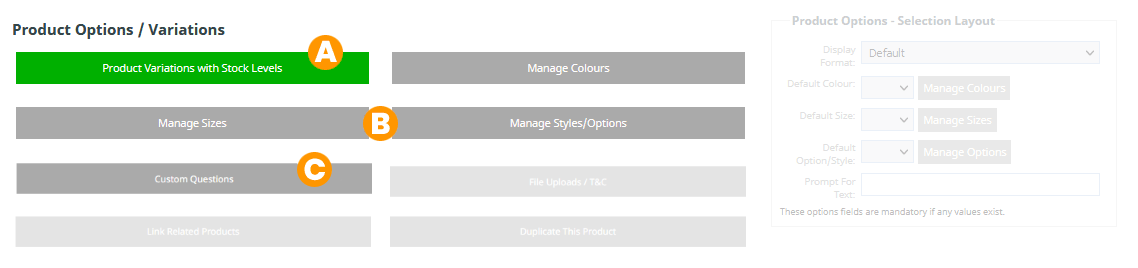
There are multiple different variations, options, sizes and text questions that can be used at an individual product level.
All of these options can be accessed via the individual product's Options/Sizes tab.
- Product Variations with Stock Levels (A)
- Manage Colours (B)
- Manage Sizes (B)
- Manage Styles/Options (B)
- Custom Questions (C)
- File Upload / T&C
- Link Related Products
- Duplicate This Product
Go to the product you wish to edit.
Navigate to the Custom Questions section (Under the product options tab).
Step 2: Choose an Input Type
Custom question fields can use a variety of input types:
- Text – single-line text input
- Multi-line Text – longer text responses
- Drop Down Box – select one option from a list of options
- Radio Buttons – choose one option from multiple choices
- Checkboxes – select one or more options
- Button Set – multiple selectable buttons
- Image Buttons – select an image as an option
- Number – numeric input
- Date – date selector
- Yes/No Question – simple true/false choice
- File Upload – allow customers to upload files (e.g., logos or images)
Step 3: Configure Your Question
For each question you can set:
- Label / Question Text – what the customer sees
- Required Field – make the question mandatory before checkout
- Preisgestaltung – optionally add an additional charge for certain answers
- Conditional Logic – show or hide fields based on the customer’s previous answers
Step 4: Save and Preview
After adding and configuring all custom questions preview your product page to ensure that questions display correctly and any conditional logic works as expected.
Tips for Using Custom Questions
- Use custom questions for personalisation or special instructions that don’t affect stock levels.
- Conditional questions help streamline the checkout process by only showing relevant fields.
- File uploads are useful for logos, design files, or reference images.
- Pricing adjustments can be applied per option, e.g., extra charge for a custom colour or trim.
Appending an enquiry form
You can also append an enquiry form to all your products. From your shopping cart manager select Setup > Display Options > then tick the checkbox labelled "Include an enquiry form" then click[Save]
Additional question fields and file uploads can be entered in at the checkout page, but those questions are fixed to the entire order, and are not product specific.
If you are working with events, consider using our events management system, then adding generic products within that area that can be connected to your events.
More From This Section
FAQ Topics
The Basics
Building your site
- Pages
- Content Editor Modes Explained
- - DRAG DROP Editor (Default)
- - CONTENTBOX Editor (Advanced)
- - WORD STYLE Editor (TinyMCE)
- - LIVE Editor (Click to Edit Mode)
- Styling Content
- Images / Backgrounds
- Banners and Sliders
- Uploading content
- Design Templates
- Forms
- More Q & A
- Menus
- Mobile Styling and Optimisation
Advanced Page Types
E-Commerce
- Shopping Basics
- Category Management
- Produkte
- Product Options
- Layout and Formatting
- Zahlungsoptionen
- Processing Orders
- Advanced Ecommerce
- Product Pricing, Currencies
- Plugins
- Wholesale
- Bookings Management System
- Freight - Couriers
- Stock & Quantities
- Vouchers, Discounts, Loyalty Points
- Selling Photos / Prints
- Shopping Cart Add-on Page types
- Advanced APIs / Add ons
- Kassensystem (POS)
- Reports
- Orders / Invoices
Email & Membership
- Member Management
- Members Pages / Template Customisations
- From Addresses and Reply To Email Notifications
- Global Enquiry form options
- Standard Field Names
- Webmail
- Bulk Email
- CRM Features
- Email Campaigns
- Forums & Blogs
- Pop3/Imap Email Services
- Scams and Hoaxes
- Lead Magnets / Growing Your Customer Database
Promoting your site
Advanced
- Power User Options
- Form Spam Filtering
- Wordpress
- PHP Setup
- [TAGS]
- jQuery snippets
- Search External Links / Import external content
- HTML / CSS Snippets
- Embedding Web Fonts
- Loading additional Material Symbols styles
- FAQ Help Map
- Uploading local font files
- Advanced Template Customisation, CSS, etc
- Languages and Translations
