
When viewing the shopping products in a Product List it is possible to enable a slideshow of images on hover.
- For best results all images should be cropped to the same size/shape as the main product image
- The images should be uploaded to the additional images area when editing the product.
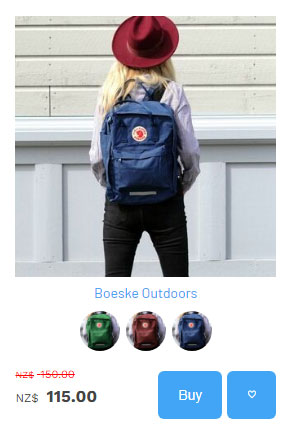
Initial Product Image loaded
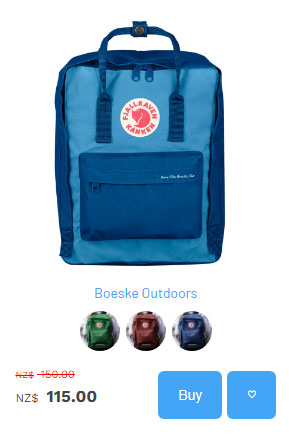
Additional product images show when
the main image is hovered over with the mouse
To enable the slidehow of images on hover
Go to E-COMMERCE> DISPLAY OPTIONS > Main/Category List Product Item Display Options
Click the checkbox Peak reveal additional images slideshow in the sidebar.
Adding your additional images
Your images are loaded as additional images when editing the product. Click the
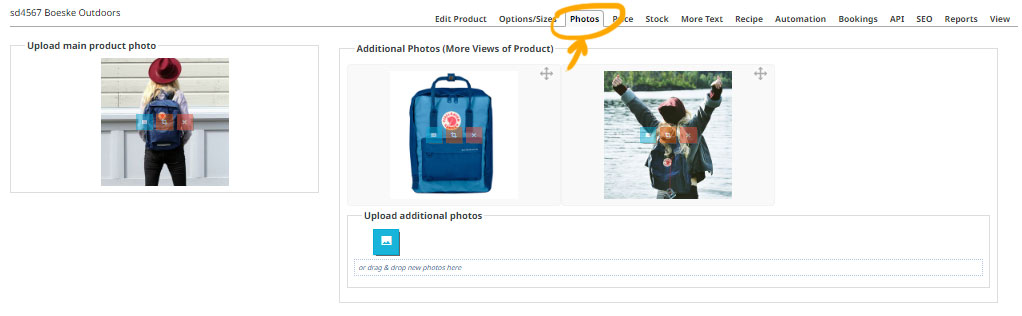
Image sizes should be consistent
Your image sizes should be consistent - e.g if the main image is square the additional images should also be square. You can use the crop engines aspect ratio options to crop the images to the same size/shape.
More From This Section
Replace long product list pagination with a show more button.
If your template supports it you can promote items with featured product stamps or stickers in the product list.
An overview of the options that can be set for your Category / Product List pages, via E-COMMERCE > Customise Display Options area
You can show additional images via the Peak reveal additional images slideshow option
FAQ Topics
Building your site
Advanced Page Types
E-Commerce
- Shopping Basics
- Product Pricing, Currencies
- Category Management
- Products
- Product Options
- Layout and Formatting
- Payment Options
- Freight - Couriers
- Processing Orders
- Orders / Invoices
- Advanced Ecommerce
- Plugins
- Wholesale
- Bookings Management System
- Stock & Quantities
- Vouchers, Discounts, Loyalty Points
- Selling Photos / Prints
- Shopping Cart Add-on Page types
- Advanced APIs / Add ons
- Point of Sale (POS)
- Reports
Email & Membership
Promoting your site
Advanced
- Power User Options
- Form Spam Filtering
- Wordpress
- PHP Setup
- [TAGS]
- jQuery snippets
- Search External Links / Import external content
- HTML / CSS Snippets
- Embedding Web Fonts
- Loading additional Material Symbols styles
- FAQ Help Map
- Uploading local font files
- Advanced Template Customisation, CSS, etc
- Languages and Translations
- Importing Content from Another Platform
