
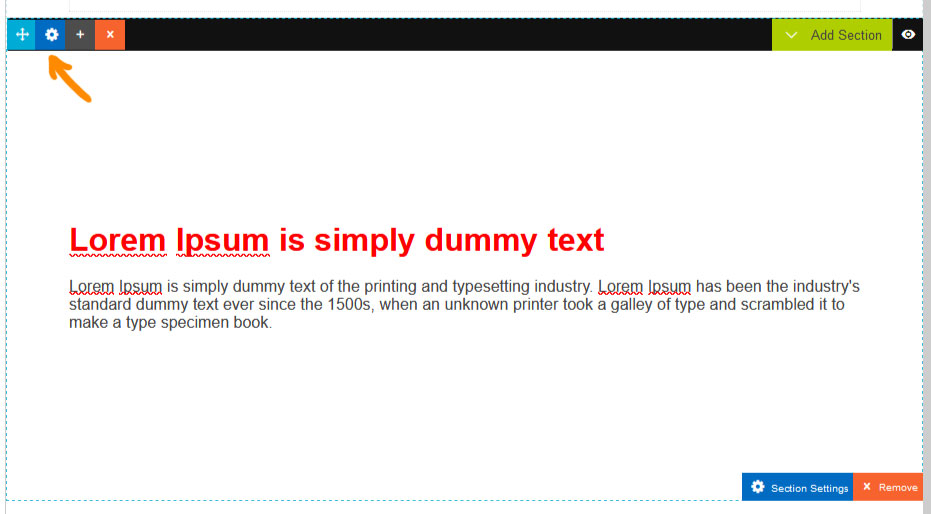
- Click the dark blue cog icon top-left of the section to bring up the Contentbox settings popup.
- From the options that show, select the required width from the Content Width dropdown box.
- Click out of the window to close, then save your changes.
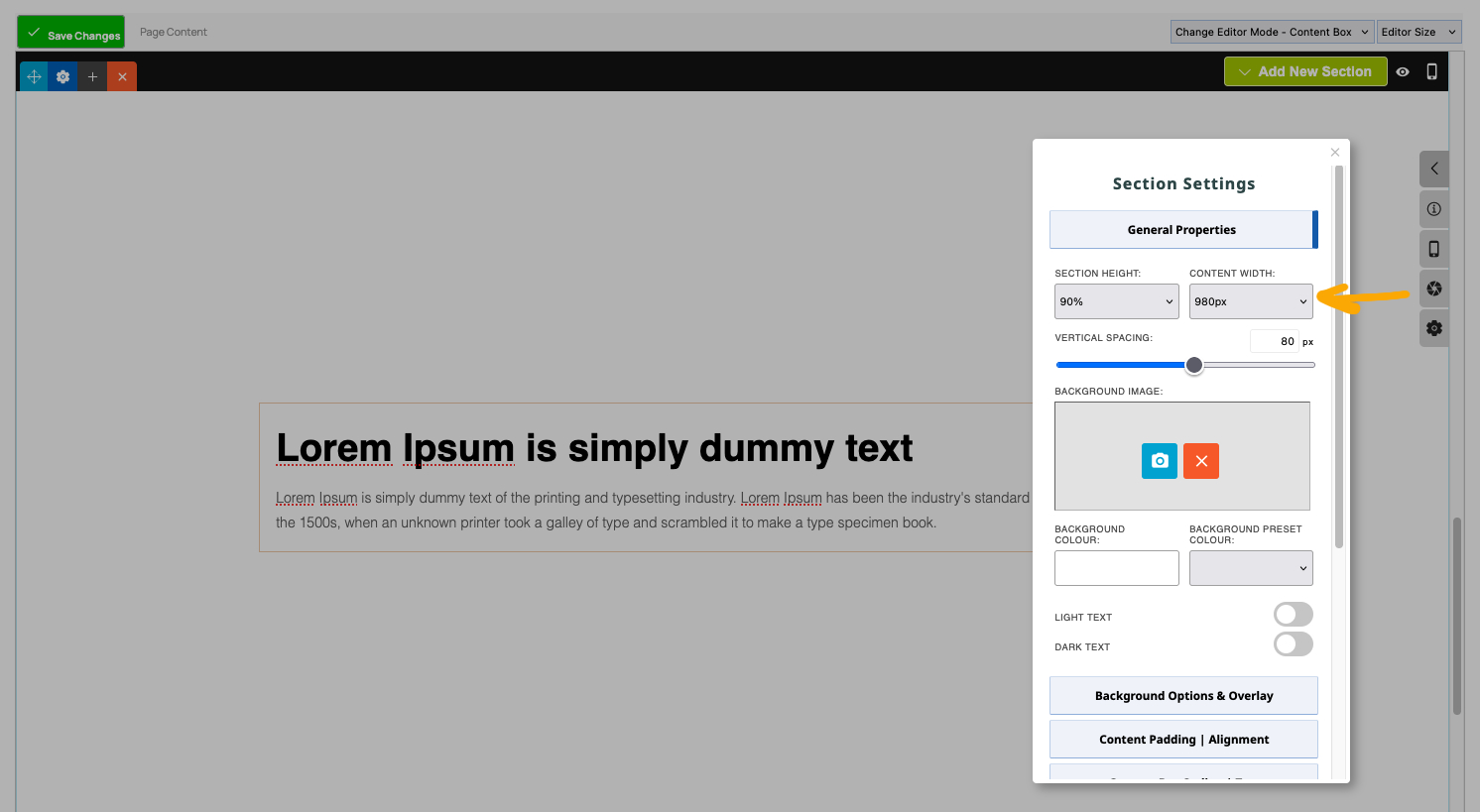
Change the CONTENT WIDTH setting to FULL if you would like the content to go full width across the screen.
You may need to change the CONTENT HORIZONTAL PADDING: or CONTENT VERTICAL PADDING: settings found in the Content Padding | Alignment area.
You might also need to change your VERTICAL SPACING of the section as found in the default General Properties area.
Force content to fit the section
To quickly remove padding or spacing you can enable the FIT CONTENT (OVERRIDE) found in the Content Styling area.
This setting overrides general snippet settings to get the result, and if the result is unexpected, uncheck the option to revert, and apply settings to snippets individually using the STYLE MODAL.

More From This Section
To add a new Contentbox section click the green ADD SECTION button top-right of the active Contentbox window
To delete a Contentbox section, click the orange X icon top-left of the section or the orange X REMOVE button at the bottom.
To move a Contentbox section, click the light blue direction icon top-left of the section
If you want to create a menu link that takes a viewer down to a specific contentbox section here's how to do it
Click the dark blue cog icon top-left of the section to bring up the Contentbox settings popup
You can adjust a background image tint via the OVERLAY settings
Click the dark blue cog icon top-left of the section to bring up the Contentbox settings popup
You can set or change the spacing amount above/below the content area of a section.
Click the dark blue cog icon top-left of the section to bring up the Contentbox settings popup
If you need to have a different mobile height for your contentbox section e.g. banner section, you can set this in the contentbox settings.
You can copy a Contentbox section and paste into a new page via the Contentbox settings modal.
You can temporarily hide a Contentbox section from view. This will hide the section and any content within it.
FAQ Topics
Building your site
Advanced Page Types
E-Commerce
- Shopping Basics
- Product Pricing, Currencies
- Category Management
- Products
- Product Options
- Layout and Formatting
- Payment Options
- Freight - Couriers
- Processing Orders
- Orders / Invoices
- Advanced Ecommerce
- Plugins
- Wholesale
- Bookings Management System
- Stock & Quantities
- Vouchers, Discounts, Loyalty Points
- Selling Photos / Prints
- Shopping Cart Add-on Page types
- Advanced APIs / Add ons
- Point of Sale (POS)
- Reports
Email & Membership
Promoting your site
Advanced
- Power User Options
- Form Spam Filtering
- Wordpress
- PHP Setup
- [TAGS]
- jQuery snippets
- Search External Links / Import external content
- HTML / CSS Snippets
- Embedding Web Fonts
- Loading additional Material Symbols styles
- FAQ Help Map
- Uploading local font files
- Advanced Template Customisation, CSS, etc
- Languages and Translations
- Importing Content from Another Platform
