
How to update pricing on a Product Variation
- Click the Products button in the main menu or E-commerce then Edit Products
- Navigate to the category containing the required product (If applicable)
- Find the required product in the list, and click the Variants button (e.g. 4 variants) at the bottom of the product, to quickly go to the Options/Sizes area for the product.
- Update the Price field of the required variation.
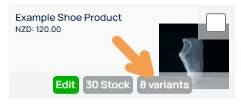
Example of a Product shown in the VIEW PRODUCTS area with a variant shortcut button to quickly get you to the variants settings area.

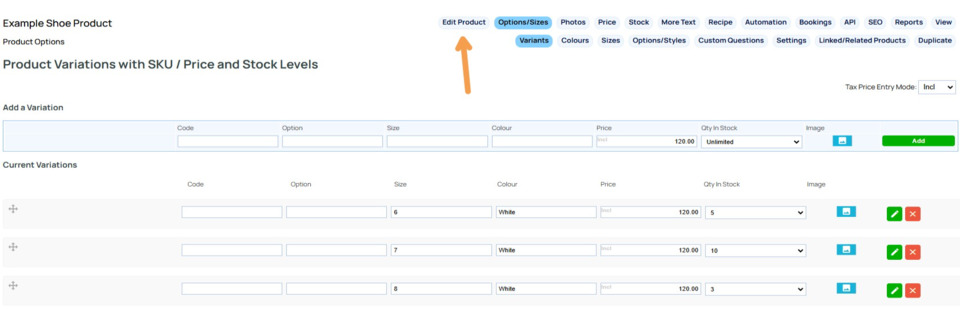
The Options/Sizes screen will show the variants listed vertically. Update the price for the required variant via the PRICE column as indicated.
Updating the main product price
You can also update the main product price (e.g. the price if no variations are chosen, default price for variations) from this screen by clicking the EDIT PRODUCT link in the small tabs above.
This will take you to the main product detail page where you can update the price.
More From This Section
There are three ways of adding additional options to your product. Product Variations with Stock Levels, the less complex (Simple) Product Options, or as Additional Custom Questions
Once the product has been created you can go in and add variations via the OPTIONS/SIZES tab
If you have product variations with Stock / SKU codes here is where you can go to delete or edit and option
Custom questions are a great way to collect additional information from customers that is not tracked as stock.
How do I include colour choices with my shopping products as well as sizes? Or how do i give different styles a different code or stock on hand quantity?
You can set the option layout to be dropdowns, swatches, single price and more
You can rename Colour, Size, and Option via the DESIGN > REWORD TITLES AND PROMPTS area.
No product option is set when a customer views the product, but you can choose to make one to be the default
With Product Variations you can enable a setting which will allow customers to add multiple options at once. Great for B2Bs.
With Product Variations you can choose to show the range of prices available rather than the main product price.
You can add image swatches to your colours, sizes and options to your Product Variations and set them to display in the product area and category list
You can add image swatches to your colours, sizes and options and set them to display in the product area and category list
Simple Product Options: global options allow you to define colours, sizes and styles as reusable options that can be applied to any product. You can centrally manage images, pricing, or removal of those colours/sizes/styles and then apply them across products or categories in bulk.
If you set the Display Stock Level to Quantity number the options will show the stock available.
With Product Varations you can set a product up so that the main product image can change when a swatch or option is selected. If using swatches the swatch can be a different image from the one that replaces the main product image.
If your Ecommerce Store has products with product variations, you can update the pricing for each variation via the Options / Sizing tab when editing the product.
Revert variations back to basic size/colour/style options.
Please see the category management area, as we consider that make/model/year is more about findability, and not an option of a product itself.
If your Ecommerce Store has products with product variations, you can add weight values for each variation via the Options / Sizing tab when editing the product.
Remember a customers choice for size, style or colour, so that it defaults for future purchases.
If you have added a product as a Product Variation, you can covert it to an standard Product if required.
FAQ Topics
Building your site
Advanced Page Types
E-Commerce
- Shopping Basics
- Product Pricing, Currencies
- Category Management
- Products
- Product Options
- Layout and Formatting
- Payment Options
- Freight - Couriers
- Processing Orders
- Orders / Invoices
- Advanced Ecommerce
- Plugins
- Wholesale
- Bookings Management System
- Stock & Quantities
- Vouchers, Discounts, Loyalty Points
- Selling Photos / Prints
- Shopping Cart Add-on Page types
- Advanced APIs / Add ons
- Point of Sale (POS)
- Reports
Email & Membership
Promoting your site
Advanced
- Power User Options
- Form Spam Filtering
- Wordpress
- PHP Setup
- [TAGS]
- jQuery snippets
- Search External Links / Import external content
- HTML / CSS Snippets
- Embedding Web Fonts
- Loading additional Material Symbols styles
- FAQ Help Map
- Uploading local font files
- Advanced Template Customisation, CSS, etc
- Languages and Translations
- Importing Content from Another Platform
