
Resizing an image permanently to reduce filesize using the crop image wizard
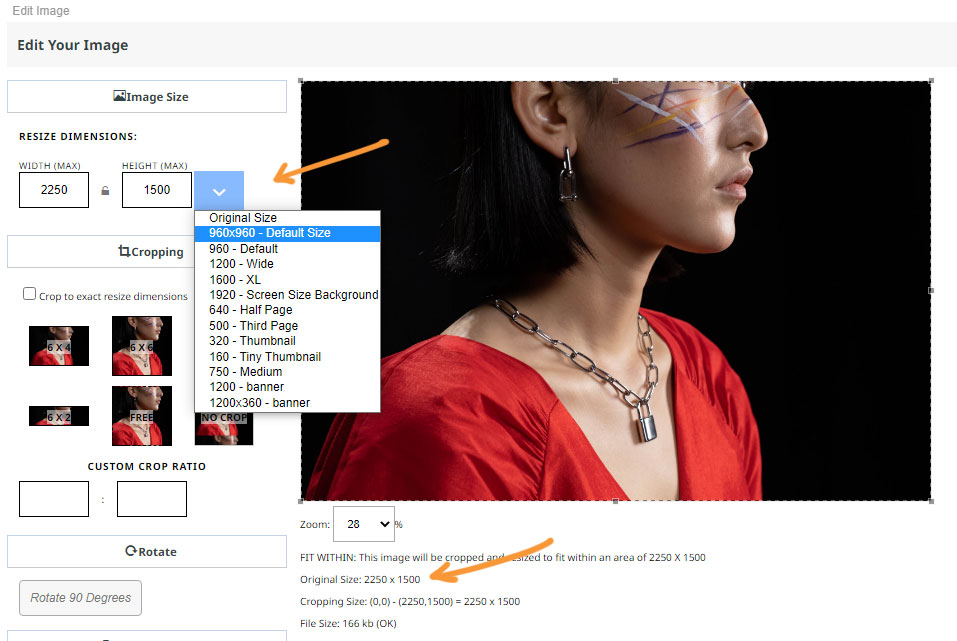
While the crop image wizard can be used to change the shape of the image, you can also use the RESIZE option to reduce the dimensions.
This can be handly when you have uploaded the file direct from your phone as-is meaning the filesize is excessively large.
You can view the original image size dimensions below the image.
To reduce the dimesions without cropping the image
Click the blue dropdown arrow to choose a preset size, or set your own max dimensions via the Width (Max) and Height (Max) fields.
With the Crop to exact resized dimensions left unchecked, the image will be resized within these values, while maintaining the current aspect ratio.
More From This Section
Here are the correct file formats and sizing requirements for uploading images to your website.
The stylemodal popup provides some information about the size of your uploaded image and its size in the website
The crop image wizard can help you to crop the display area of a set of images at once for image dimension uniformity.
By default images scale to fit the available column width, but if your image is smaller than the available area you can disable the scaling using the crop icon.
You can use the cropping engine when uploading or editing an image to permanently crop the image to a fixed height and width
With the Drag-drop and Contentbox editors you can add a colour overlay to your image.
As well as image size warnings that appear when using the Crop/resize Image wizard. The system provides warnings of oversized content when using the CMS.
One option to reduce the file size of large images is to resize them. This will not crop the image only change the dimensions/quality of the image.
Why are my thumbnail images so blurry? This depends on your website template, and layout chosen, along with thumbnail settings.
You can add alt text via the SEO area of the Style Editor popup
Here is how to add alt text to images when using the TINYMCE editor.
Banner images set via the DESIGN > BANNER area can have Alt-text applied.
It is possible to have the text wrap around images in the Drag-drop and Contentbox editors.
FAQ Topics
Building your site
Advanced Page Types
E-Commerce
- Shopping Basics
- Product Pricing, Currencies
- Category Management
- Products
- Product Options
- Layout and Formatting
- Payment Options
- Freight - Couriers
- Processing Orders
- Orders / Invoices
- Advanced Ecommerce
- Plugins
- Wholesale
- Bookings Management System
- Stock & Quantities
- Vouchers, Discounts, Loyalty Points
- Selling Photos / Prints
- Shopping Cart Add-on Page types
- Advanced APIs / Add ons
- Point of Sale (POS)
- Reports
Email & Membership
Promoting your site
Advanced
- Power User Options
- Form Spam Filtering
- Wordpress
- PHP Setup
- [TAGS]
- jQuery snippets
- Search External Links / Import external content
- HTML / CSS Snippets
- Embedding Web Fonts
- Loading additional Material Symbols styles
- FAQ Help Map
- Uploading local font files
- Advanced Template Customisation, CSS, etc
- Languages and Translations
- Importing Content from Another Platform
