
Adding nutritional information can be easy. We have a snippet designed for this, and it can be added on products pages in the "More information" area.
You may like to rename one of your tabs globally (e.g. the contents tab) to be "Nutritional Information"
Then you can add this snippet and just fill in the required information.
To rename a tab in the "More information" area of your shop.
This is a global change, and will rename the tab throughout the site. See this help file for more information on this area and how to rename a tab.
To add a snippet in one of these tabs
1. Choose which tab you would like to add the nutritional information under.
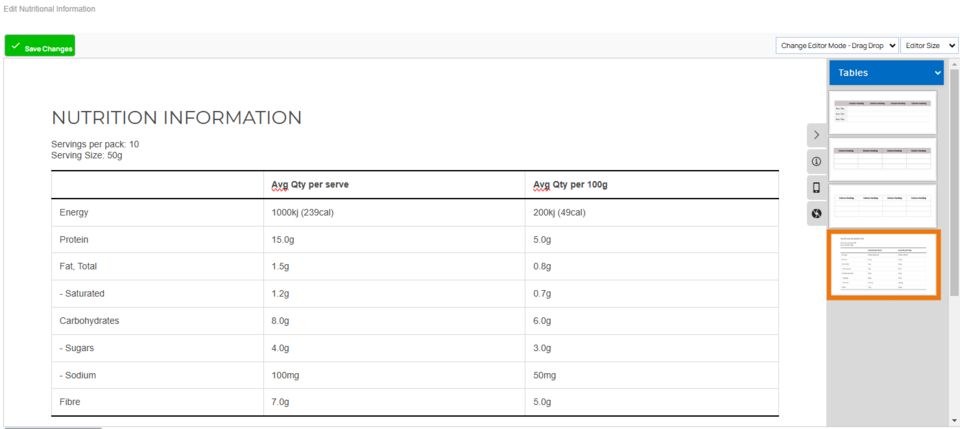
2. Change the editor to drag/drop under the Change editor mode at the top right - refer screenshot below.
3. Change the dropdown box in the snippet selector to tables
4. Click on, or drag the snippet to the area in the page you would like it. - refer screenshot below for the snippet shown.
5. Add your information
6. Press Save Changes
7. Publish.
More From This Section
FAQ Topics
Building your site
Advanced Page Types
E-Commerce
- Shopping Basics
- Product Pricing, Currencies
- Category Management
- Products
- Product Options
- Layout and Formatting
- Payment Options
- Freight - Couriers
- Processing Orders
- Orders / Invoices
- Advanced Ecommerce
- Plugins
- Wholesale
- Bookings Management System
- Stock & Quantities
- Vouchers, Discounts, Loyalty Points
- Selling Photos / Prints
- Shopping Cart Add-on Page types
- Advanced APIs / Add ons
- Point of Sale (POS)
- Reports
Email & Membership
Promoting your site
Advanced
- Power User Options
- Form Spam Filtering
- Wordpress
- PHP Setup
- [TAGS]
- jQuery snippets
- Search External Links / Import external content
- HTML / CSS Snippets
- Embedding Web Fonts
- Loading additional Material Symbols styles
- FAQ Help Map
- Uploading local font files
- Advanced Template Customisation, CSS, etc
- Languages and Translations
- Importing Content from Another Platform
