
You can change a Product filename via the SEO tab when editing a Product, or in bulk via the SEO area.
To edit a product filename when editing a Product
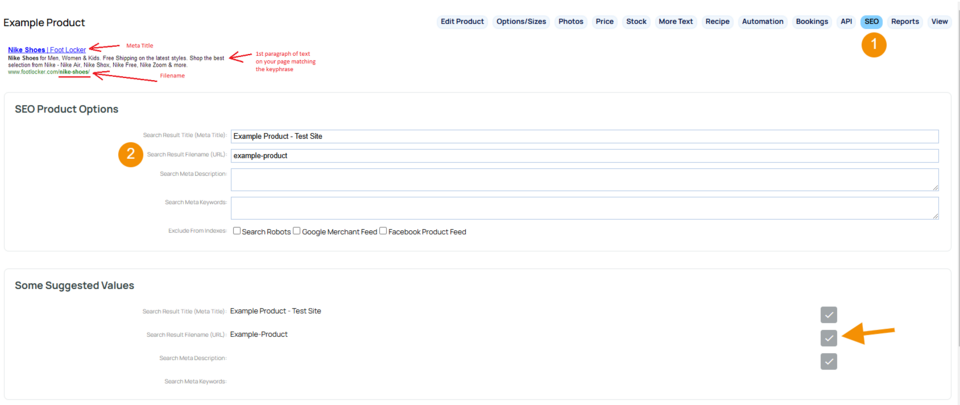
- Click the small SEO tab top-right of the editor
- Update the Search Results Filename field with the new filename. You may like to use the suggestions in the bottom box. Just click on the tick to use the suggestion.
- Publish to write the new filename
Note: if you add a / at the front of the filename it will make the filename appear as yourdomain.com/filename
If you do not add a / at the beginning, it will appear as yourdomain.com/products/filename
If you had a previous custom filename you will need to delete this from the FILES area in the CMS.
It is a good idea to redirect the old filename to the new one.
Be aware, changing custom filenames without redirection can cause broken links within search engines, and within your website if the product or page was linked somewhere.
See also:
More From This Section
How to add a new product to your shopping page.
How to add a general stock item, e.g. clothing, beauty products, candles etc.
How to add a voucher product that is purchasable. e.g. gift vouchers
How to sell MP3s or PDFs or other digital media files via our shopping cart.
How to delete a product from your shopping page.
You can make a duplicate copy of an existing product in the CMS - here's how
How to block a product from being accessible on your shopping page without deleting the information.
Any product can have a vast range of colours / sizes and other options added via the OPTIONS/SIZES tab. As well as unlimited customisations options including file uploads.
You can move products to another category in bulk.
You can easily add a Product to multiple Categories via the ECOMMERCE > EDIT PRODUCTS area.
You can change a Product filename via the SEO tab when editing a Product, or in bulk via the SEO tab
You can add an image to a product when creating the product, or after the product has been created.
You can move products between different shopping pages.
You can promote individual products to appear on your template borders, or checkout pages, or auto suggest products at checkout based on others order history.
You can remove the default featured products via the PROMOTION setting on a product, or in bulk.
You can change the order featured products appear on the website
You can take a selection of products and change them to child products of a main product.
You can create multiple new products by drag-dropping a selection of images into the CMS
You can link a product to an existing email campaign via the AUTOMATION tab when editing a product.
Within the Products visibility area are options for restricting access to the Product
Can I tag my products with features, and so users can search for products that match the features they require?
You can add a short description to your Product by adding text to the details area, found it the Basic Product Description section, when creating a new Product
While the Basic Product Description area only allows for text in the Details: field, you can use the Short Product Description Rich Text Editor option to add links or other HTML styling.
When editing a Product, the More Text area provides different areas on the product page where you can add custom content, including buttons and links.
FAQ Topics
Building your site
Advanced Page Types
E-Commerce
- Shopping Basics
- Category Management
- Products
- Product Options
- Layout and Formatting
- Payment Options
- Processing Orders
- Advanced Ecommerce
- Product Pricing, Currencies
- Plugins
- Wholesale
- Bookings Management System
- Freight - Couriers
- Stock & Quantities
- Vouchers, Discounts, Loyalty Points
- Selling Photos / Prints
- Shopping Cart Add-on Page types
- Advanced APIs / Add ons
- Point of Sale (POS)
- Reports
- Orders / Invoices
Email & Membership
Promoting your site
Advanced
- Power User Options
- Form Spam Filtering
- Wordpress
- PHP Setup
- [TAGS]
- jQuery snippets
- Search External Links / Import external content
- HTML / CSS Snippets
- Embedding Web Fonts
- Loading additional Material Symbols styles
- FAQ Help Map
- Uploading local font files
- Advanced Template Customisation, CSS, etc
- Languages and Translations
- Importing Content from Another Platform
