
Learn how to link a button on your homepage (or any other page) that jumps directly to a specific snippet on another page using a bookmark link.
What the bookmark does
In this example we will call our bookmark service1
Adding #service1 tells the page to scroll directly to that section when the button is clicked.
To make this work, the section on the Services page must have the matching ID set to: service1
Part 1: Create a Bookmark on the Services Page Snippet
Create the Bookmark in the snippet on the page you want the link to jump to.
1. Click Style Editor on the snippet you want to make the bookmark (red cog - top left)

2. In the style editor that opens, click the code tab (< >)
3. Assign an ID/Bookmark to the section you are jumping to. Keep it simple, with no spaces.
4. Save changes.
This creates a “bookmark” that can be linked to from other pages, or can be jumped to from another part of the page.

Part 2: Link a Homepage Button to the Section
1. Go to the Home page (or any other page) in your CMS
2. Hover over your button or link and click Edit Link

3. Click the Red Link icon next to the Link to box
4. Choose link to page on this site
5. Select the Services page ( or whatever page you are jumping to)
6. Once you have selected the page and it appears in the Link to Box, type the bookmark ID with a # prefix: e.g. #service1 onto the end of the page link.
7. Click Apply
8. Save Changes
9. Click Publish Changes - you must Publish to cement the links.
Now, when visitors click the button, it will jump directly to the section you marked on the Services page.
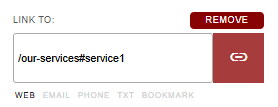
Example of complete link to another page including bookmark.
FAQ Topics
Building your site
Advanced Page Types
E-Commerce
- Shopping Basics
- Product Pricing, Currencies
- Category Management
- Products
- Product Options
- Layout and Formatting
- Payment Options
- Freight - Couriers
- Processing Orders
- Orders / Invoices
- Advanced Ecommerce
- Plugins
- Wholesale
- Bookings Management System
- Stock & Quantities
- Vouchers, Discounts, Loyalty Points
- Selling Photos / Prints
- Shopping Cart Add-on Page types
- Advanced APIs / Add ons
- Point of Sale (POS)
- Reports
Email & Membership
Promoting your site
Advanced
- Power User Options
- Form Spam Filtering
- Wordpress
- PHP Setup
- [TAGS]
- jQuery snippets
- Search External Links / Import external content
- HTML / CSS Snippets
- Embedding Web Fonts
- Loading additional Material Symbols styles
- FAQ Help Map
- Uploading local font files
- Advanced Template Customisation, CSS, etc
- Languages and Translations
- Importing Content from Another Platform
